CS1010 Programming Environment (Entainer)
To make it easier for you to start programming in C within a Linux-based operating system, we have developed a web-based system called Entainer (“environment containers”).
For why we use C and Linux, see our Course Design FAQs.
You will complete all your labs, tutorials, and exercise volumes in Entainer. Set it up immediately, even if you already use a Linux-based system 1, by following the steps below.
Step 0: Before You Start
You will need:
- A laptop with a modern browser (Chrome and Firefox are preferred)
- A stable internet connection
Run all of the following steps on your laptop.
Step 1: Install the NUS VPN (Cisco Secure Client)
Go to one of these links and follow the instructions depending on the operating system installed on your laptop:
- If Windows: Windows installation guide
- If Mac: Mac installation guide
- If Linux: follow NUS’s Linux installation guide. It generally works, but you might need to try different versions
- Eldon and Sriram use different Linux systems, and the VPN works for both of us
Do not install any other VPNs (e.g., PulseSecure or FortiClient)
These are old VPN systems that are no longer used. Ignore all references to them.
Now that you have installed the VPN, you need to configure it and sign in. Follow one of these guides:
- If Windows: Windows configuration guide
- If Mac: Mac configuration guide
- If Linux: Linux configuration guide
If the VPN address / profile is missing after in the Connect to box after installation, follow NUS IT’s troubleshooting instructions.
Make sure you are signed in to the NUS VPN before moving on.
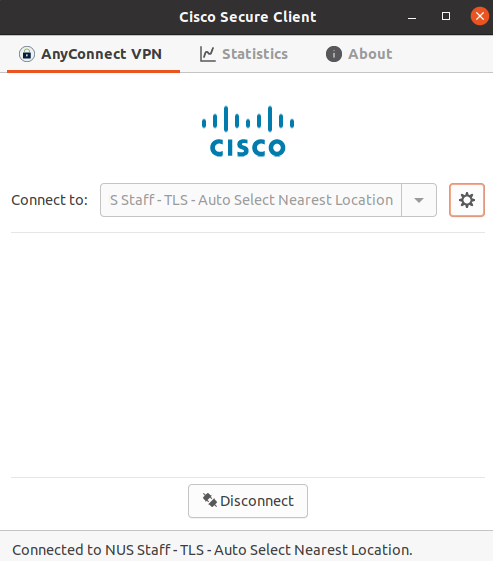 (note that your VPN will have status messages with NUS Student or something else, not NUS Staff)
You will need to turn on the VPN to use Entainer if you are not currently connected to the School of Computing's WiFi network
Verify this before proceeding to any other steps. 2
In general, it’s better to just have the VPN connected, because it’s sometimes not clear if you’re within the boundaries of SoC (e.g., our assigned lecture theater LT38 is not!)
Step 2: Create and Set Up a GitHub Account
You need a GitHub account to store your CS1010 code, including exercise submissions, TA feedback, grading information, and practical exam code.
Check your approved NUS email for Entainer before continuing!
Check that your name and approved email address appear in the CS1010 Entainer access list in Canvas. Use the exact address listed there. If your name or email address is missing, see Troubleshooting.
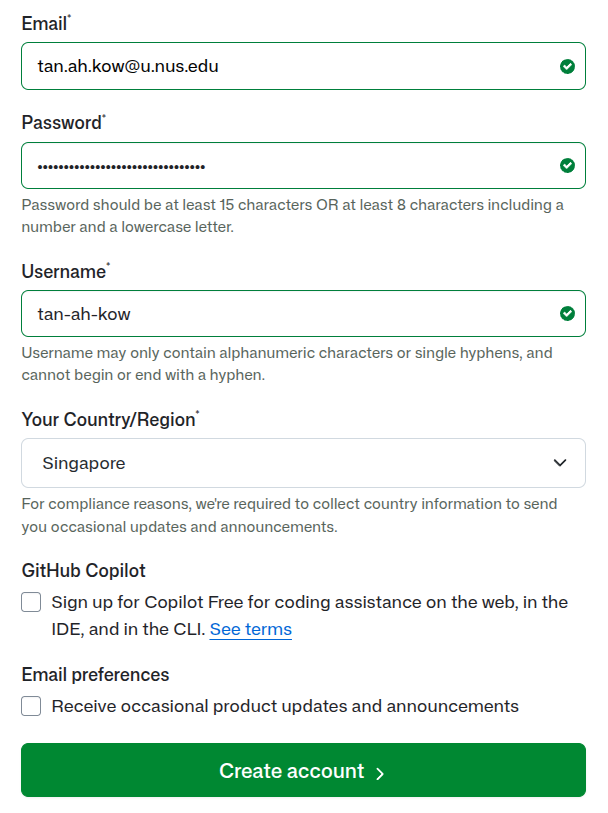
Step 2.0a: Create a New GitHub Account (skip if you are comfortable using your existing account)
- Open github.com/signup and do not use the Google or Apple sign-in option
- Email: Use your approved email address from earlier in the Email field, ending with
@u.nus.edu - Username: Choose a username you are comfortable using for coursework
- Complete the rest of the form and complete GitHub’s email verification step
Step 2.0b: Use an Existing GitHub Account
If your account is already linked
You can skip this step if you already have your approved email address linked to your GitHub account and are happy to use that account for CS1010.
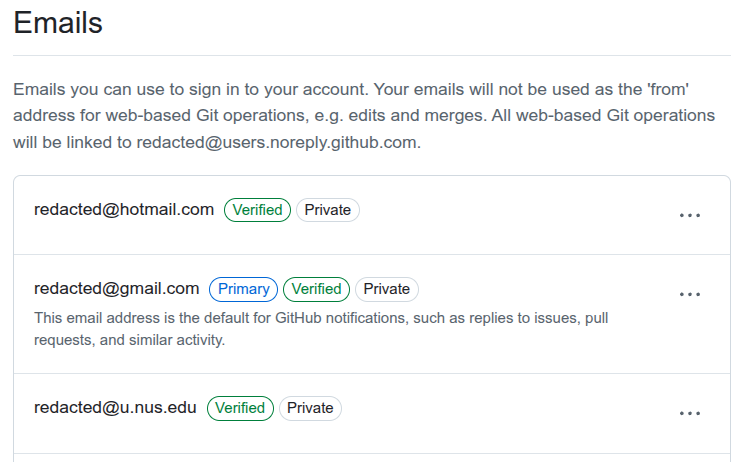
To link your email address:
- Log in to GitHub
- Open GitHub’s email settings (Settings > Emails)
- Add your approved email address from above. It can be a secondary email address
- Open the verification email sent to that email from GitHub
- Verify the email address
Step 3: Log In at code.cs1010.org
Reminder: turn on the VPN first if you are not connected to SoC WiFi!
The website will not load unless you do this correctly.
Step 3.0: Open Entainer
Open code.cs1010.org in your browser. This is the link to our Entainer system.
Step 3.1: Sign In with GitHub
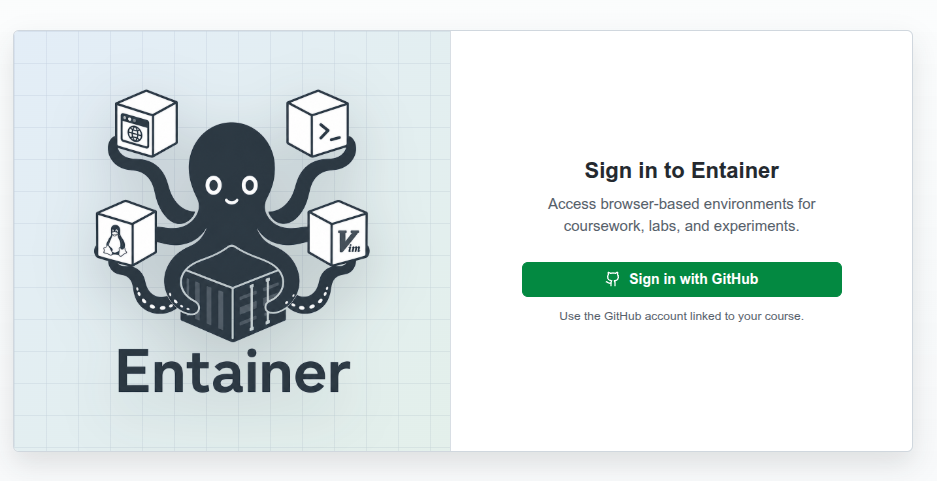
If prompted, use the GitHub account you just created. If you’ve already signed in earlier, you may not get any prompts.
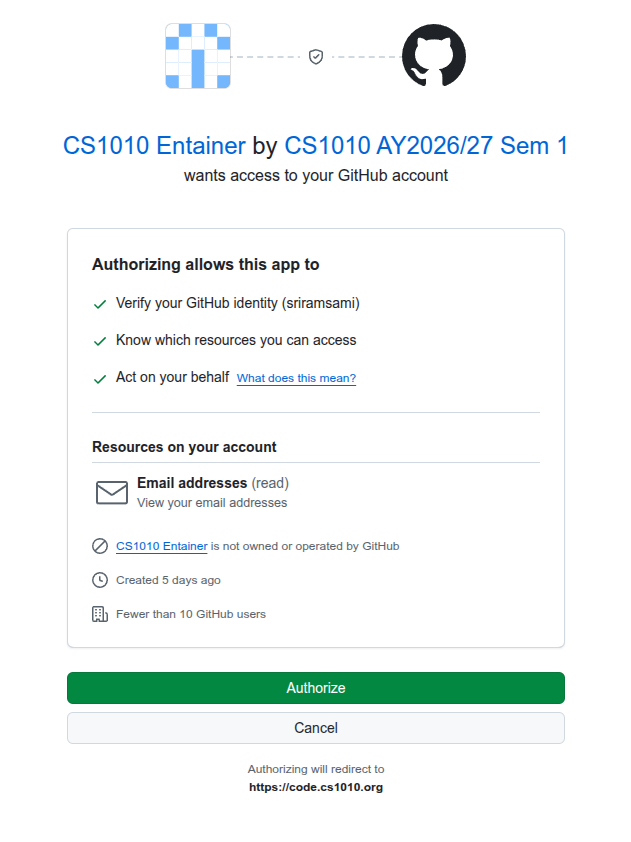
Step 3.2 Authorize the Entainer Application
Our Entainer system will ask for permission to access your GitHub account. It only needs
to read your email and read and write to our specific GitHub organization. It does not
have access to your other personal projects.
Step 3.3: Accept the Organizational Invitation
You should see this page appear: this is normal and expected!
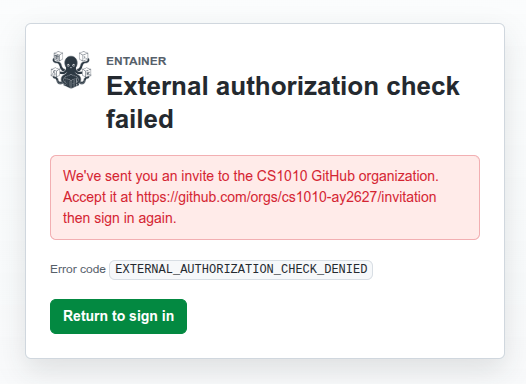
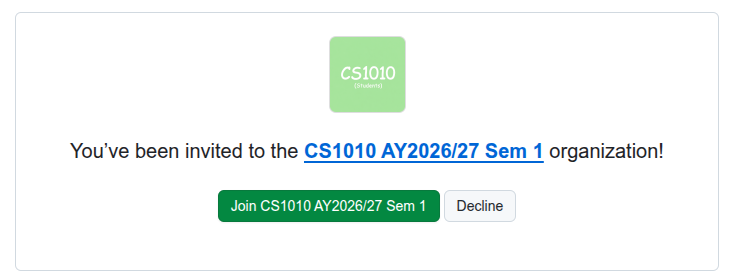
Open the GitHub organization invitation and accept it. You can also access the invitation through the email GitHub sends you.
Return to Entainer, select Return to sign in, and sign in again.
Step 4: You Are Set Up
You should now see a page that looks like this:
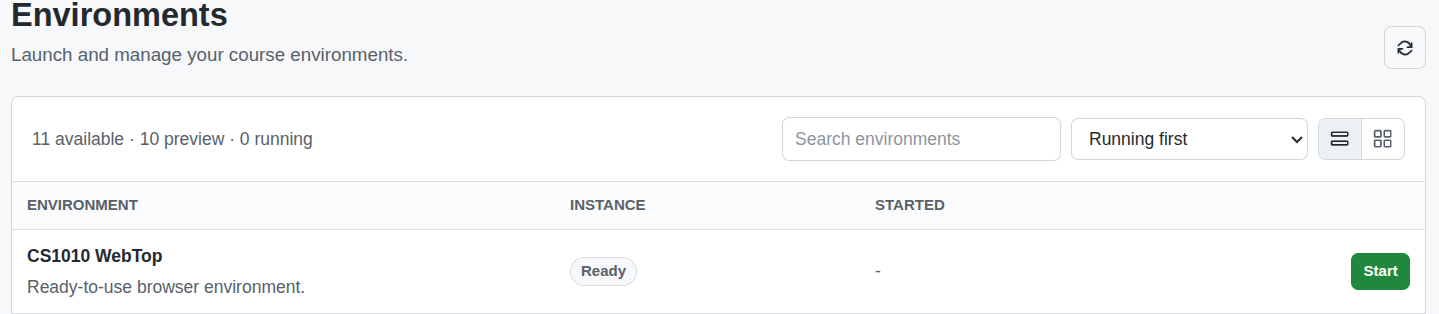
Congratulations, you are now set up in Entainer. You will not have to repeat these steps.
For CS1010, start by creating and exploring the CS1010 WebTop environment. Click Create next to WebTop in the dashboard and wait for it to start. This may take at least 10 seconds, and sometimes a couple of minutes.
Please let us know if you have any issues!
Troubleshooting
If you run into a problem while using Entainer, here are the fastest ways to get help:
Asking for Help Within Entainer
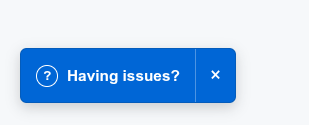
Use the Having issues? button within Entainer to start a chat with us. This is usually the fastest way to get help. Use this channel only for technical problems with Entainer, not for general programming questions.
Asking for Help Outside Entainer
If you cannot access Entainer, use Canvas or email:
Canvas
Post your issue in the dedicated Canvas discussion thread
If you email the teaching team, send your message to all three of us:
What to Send When Asking for Help
When you ask the teaching team for help with the programming environment, include:
- Your GitHub username
- The approved email address you added to GitHub
- What you were trying to do
- The exact error message
- Screenshot(s) of the page or terminal
Start your email subject with CS1010: so we can spot it quickly